Hawaii - Minor (22.6)
Release Summary
Kaptio is proud to announce this minor release for Hawaii. This release is intended to address issues with previous releases.
See Minor Changes and Bug Fixes for more information.
New Features
Feature: Promotions
In this release, we have expanded on the supported Promotions (Gift of Time auto-apply, Gift of Time promo code, Solo Saving - Water and Solo Savings - Land) to also include Child Discount. This additional promotion is now fully supported, including the ability to save the promotion and view it in the Booking Overview tab.
How to Enable - Child Discount
This section describes the specific set up for a Child discount promotion.
-
Navigate to the Promotions tab
-
Add a New Promotion for Child Discount.
-
Add information to the Details Tab, for example:
-
Promotion Name: Enter a name for the Promotion you are creating, e.g. Child Discount
-
External Name: Enter the external Promotion name e.g. Child Discount External Name
-
Description: Enter the description for the UI tooltips in Package Search/Booking Wizard e.g. This is the detailed description for the Child Discount.
-
Short Label: Enter a shorter name that will display as the pill label in Package Search/Booking Wizard e.g. CD
-
Added by default: False
-
Active: True
-
-
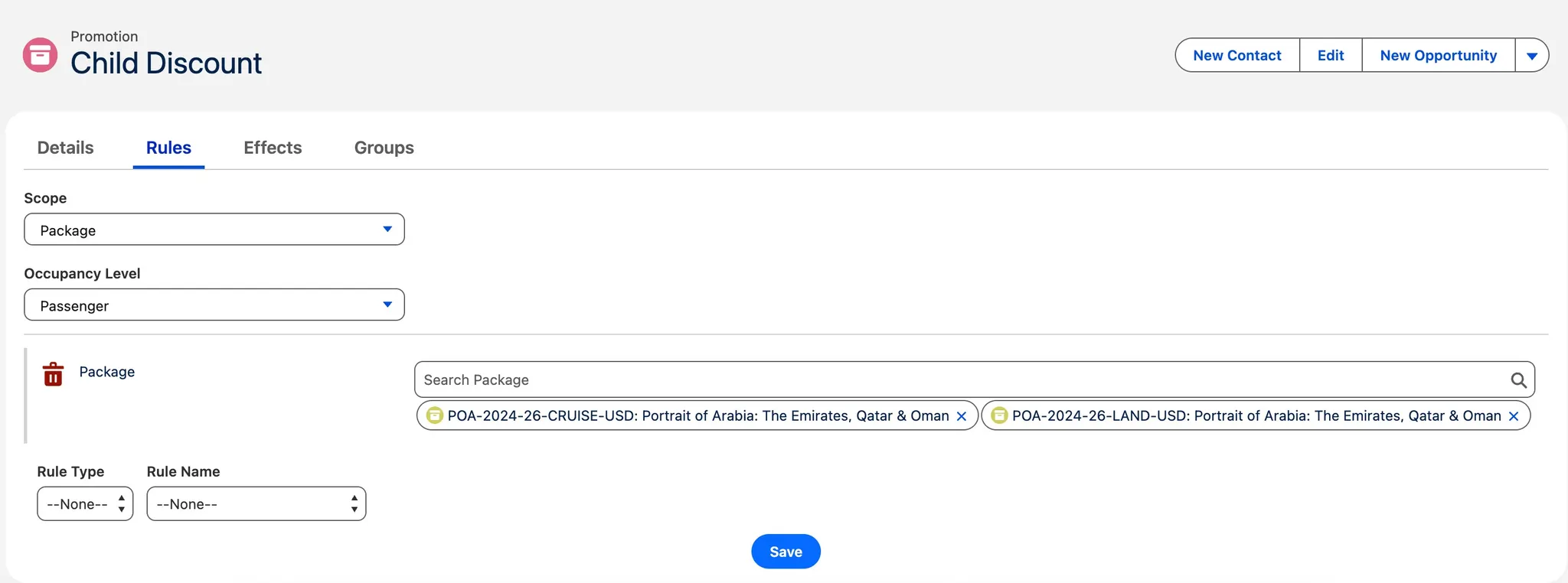
Add information to the Rules Tab, for example:
-
Scope: Package
-
-
Occupancy Level: Passenger
-
Package: Link the required specific Package e.g. POA Cruise
-
-
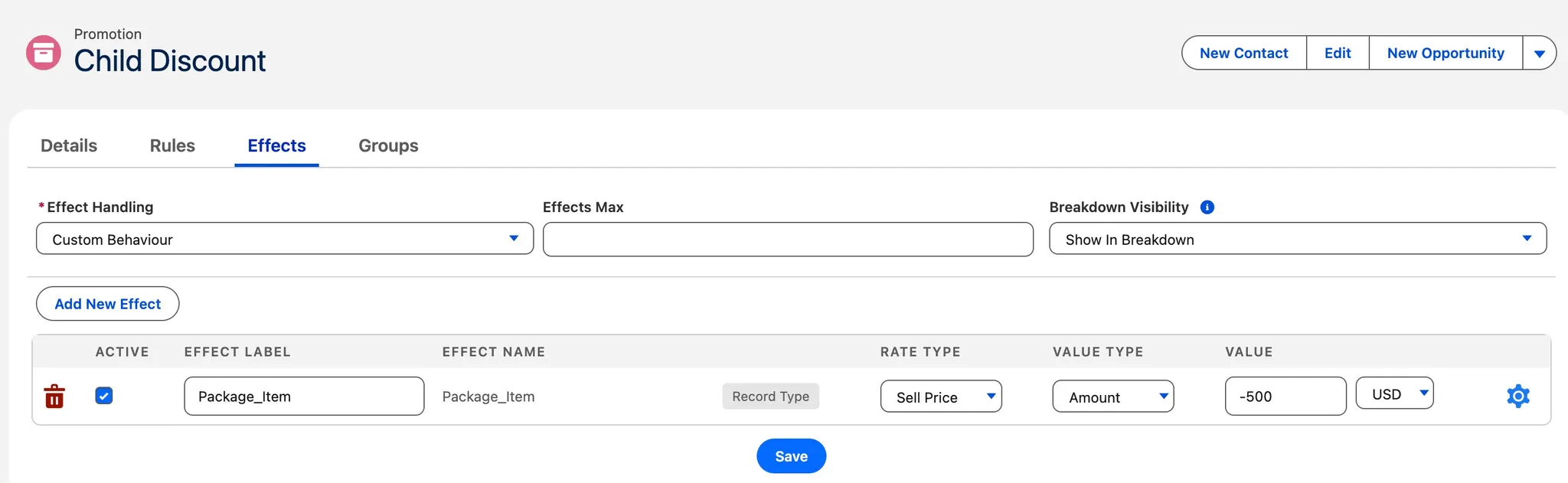
Add information to the Effects Tab, for example:
-
Effect Handling: Custom Behaviour
-
Effects Max: no value
-
Breakdown Visibility: Show in Breakdown
-
Effect Label: Package_ Item
-
Effect Name: Package_Item Record Type
-
Rate Type: Sell Price
-
Value Type: Amount
-
Value: add the promotion value e.g. -500 USD
-
-
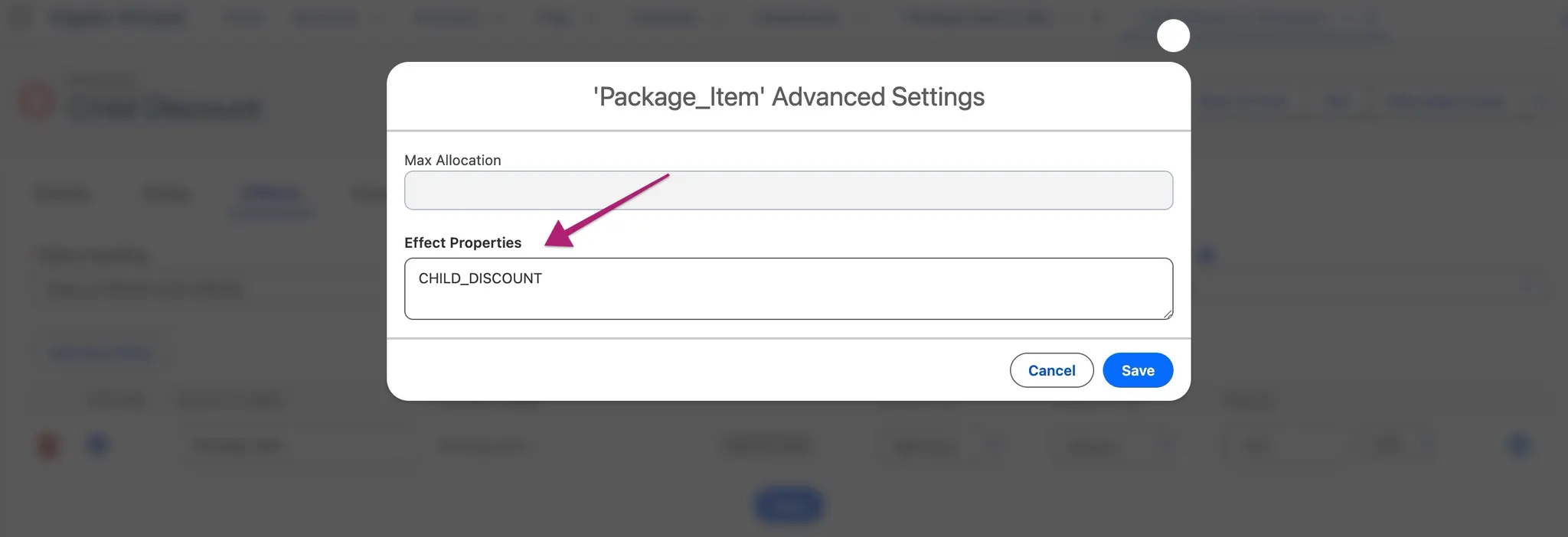
Effect Properties: click on the cog icon on the effect line, and add CHILD_DISCOUNT to the Effect Properties field.
NOTES:
-
Only one currency should be set up per Promotion.
-
The promotion value should not include decimal values e.g. 0.50.
Additional Setup
-
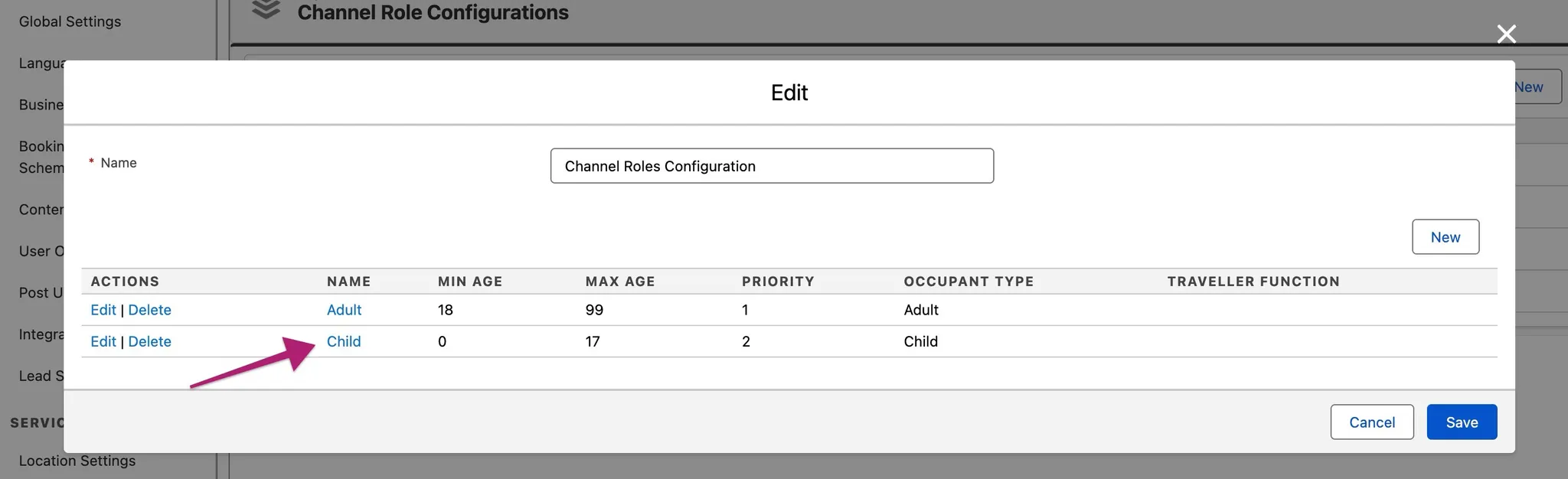
A Channel role for a child needs to be configured e.g.
How it works
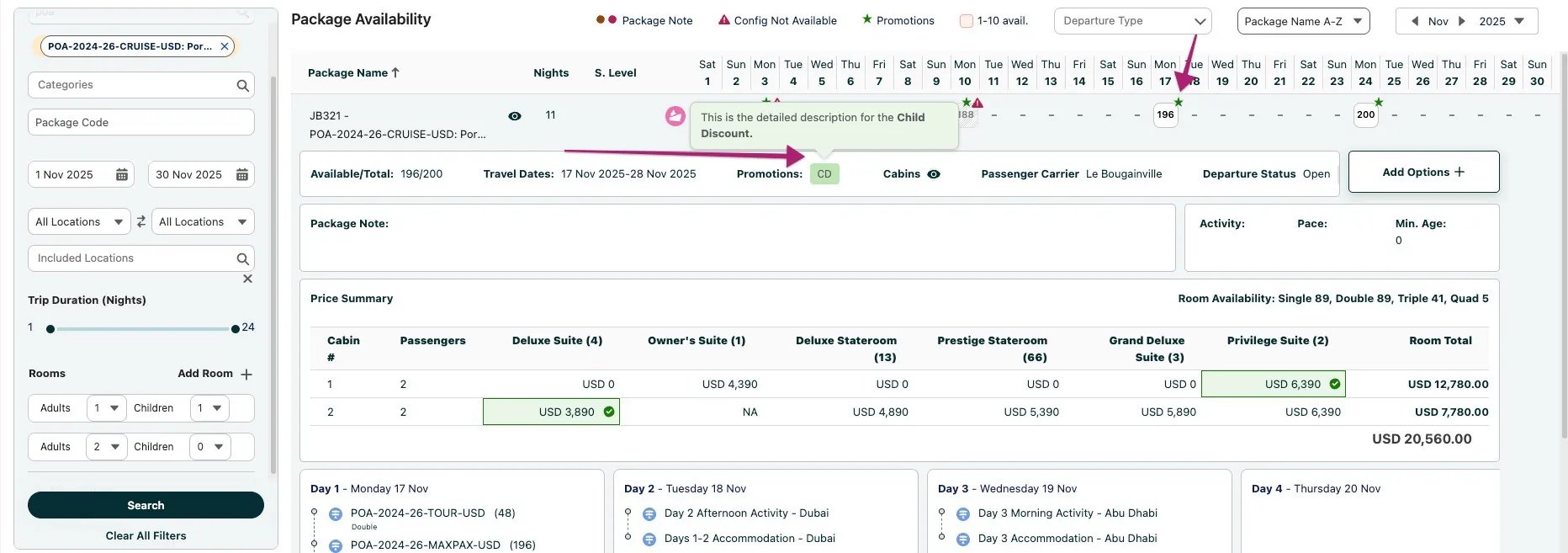
On Package Search, in the Availability tab, the Child discount promotion will be shown for the selected package:
-
A promotion star icon will appear next to the departure date.
-
When expanded, the promotion’s short label will be displayed as a pill e.g. CD
-
Hovering over the promotion pill will reveal the full promotion description as a tooltip.
-
However, for all Packages, the price summary does not display the child promotion discount. This will be applied when a contact is selected in the Booking Wizard.
Applying the Child discount in the Booking Wizard
-
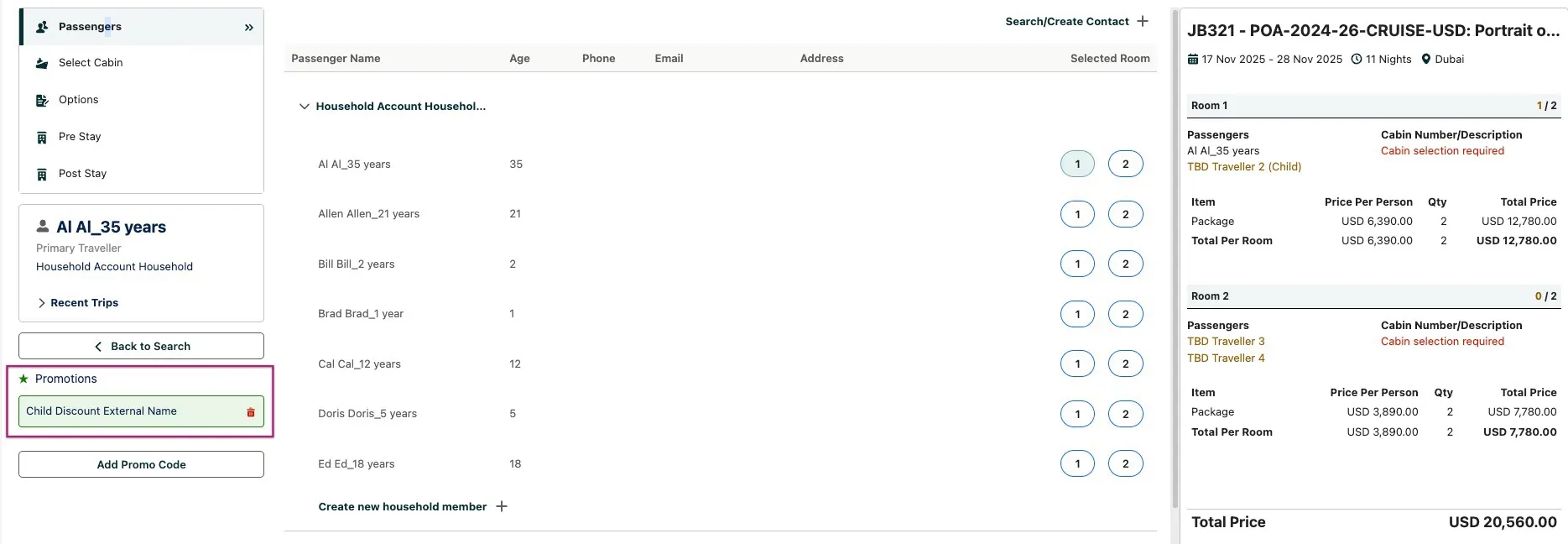
Within Booking Wizard, the Child Discount promotion will display as an applicable promotion in the Promotions section.
-
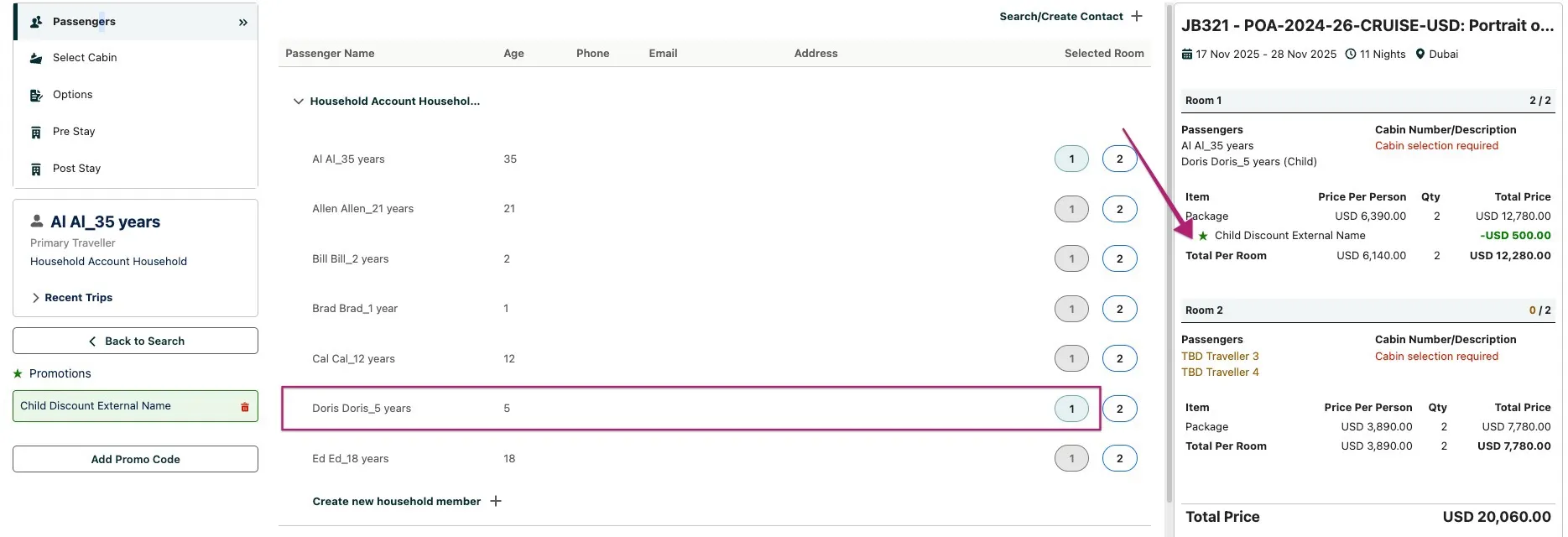
In the Passengers tab, link contacts to the corresponding passengers. If a contact is identified as a Child, the Child Discount promotion is automatically applied. The Booking Wizard summary then updates to display the promotion, reflect the discount amount, and show the updated total price.
-
It is not necessary to have the correct number of adults and children per room when initiating Package Search. The Child Discount promotion will automatically apply if a passenger originally designated as an adult is later associated with a contact identified as a child. See below example for Rom 2:
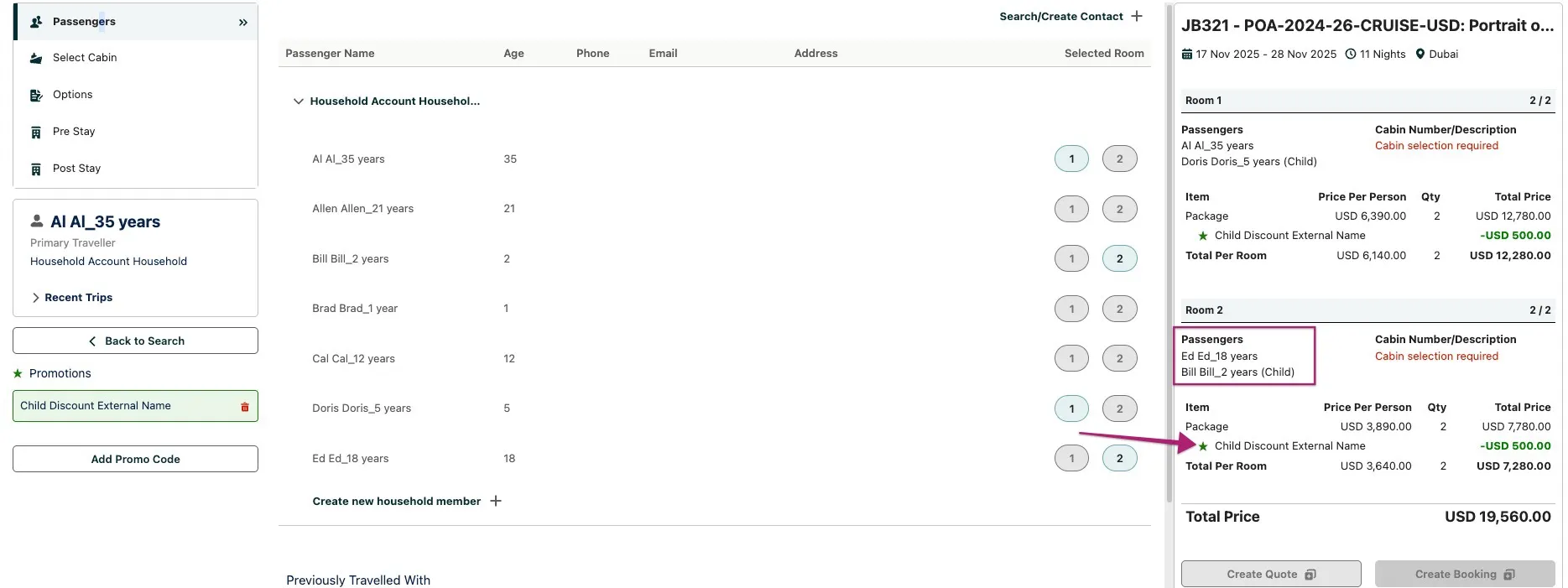
NOTE: the Promotion name label within the Booking Wizard summary will display from the Promotions External name field.
-
If required, you can remove the automatically applied Child Discount Promotion by clicking the red bin icon next to the Promotion Name. This will remove the discount value from the Booking Wizard summary. To reapply the Promotion, simply click the + Icon button next to the Promotion name.
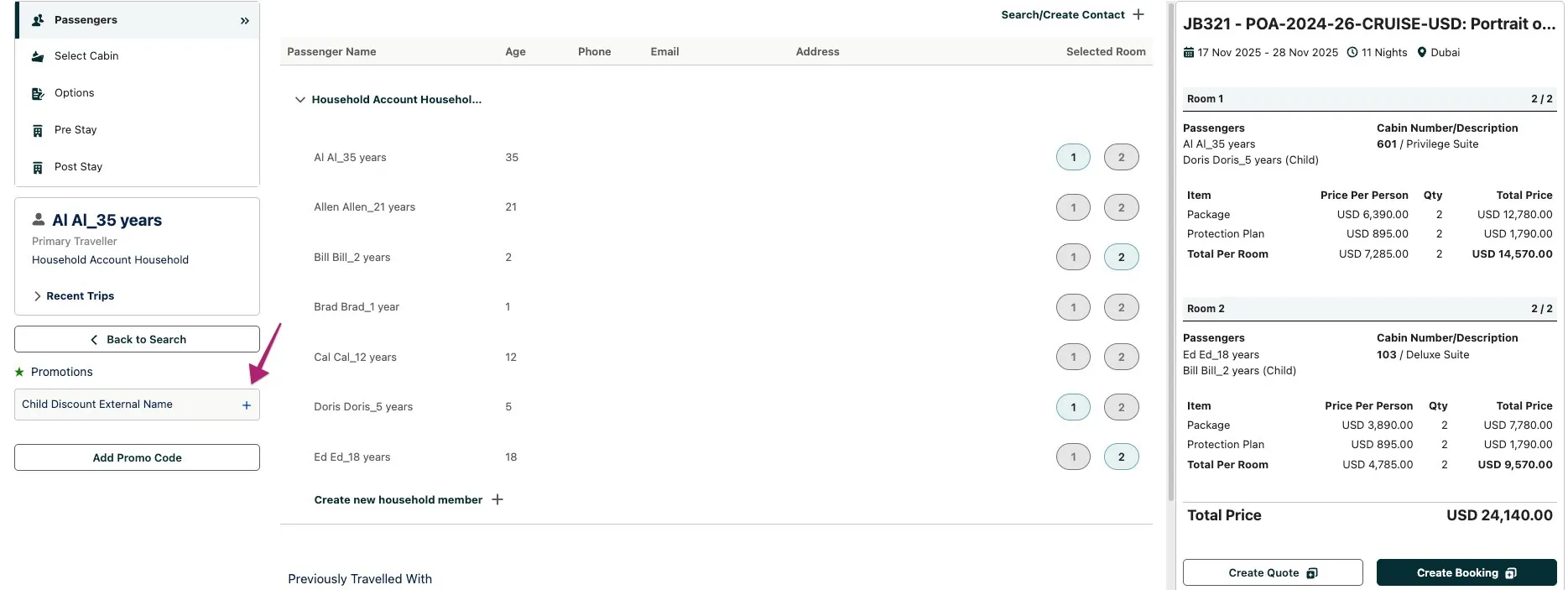
Adding the Promotion to an Itinerary
-
Click on the Create Quote or Create Booking button to add the Package with the Promotion to an Itinerary. Viewing the Promotion on the Booking Overview tab
Promotional discounts saved to an itinerary from the Booking Wizard display directly in the Booking Overview.
Within this release we have enhanced the Booking Overview to correctly display promotions applied at the Passenger Unit Assignment level, including their associated price line effects. Therefore the Child Discount Promotion, when eligible and shown in the Booking Wizard price summary, is shown within the applicable passenger section, with its external name indented beneath the Tour Service it applies to, and prefixed by a green ★ icon. The discount reflects the correct passenger amount, and all passenger, room, and booking totals are updated accordingly.
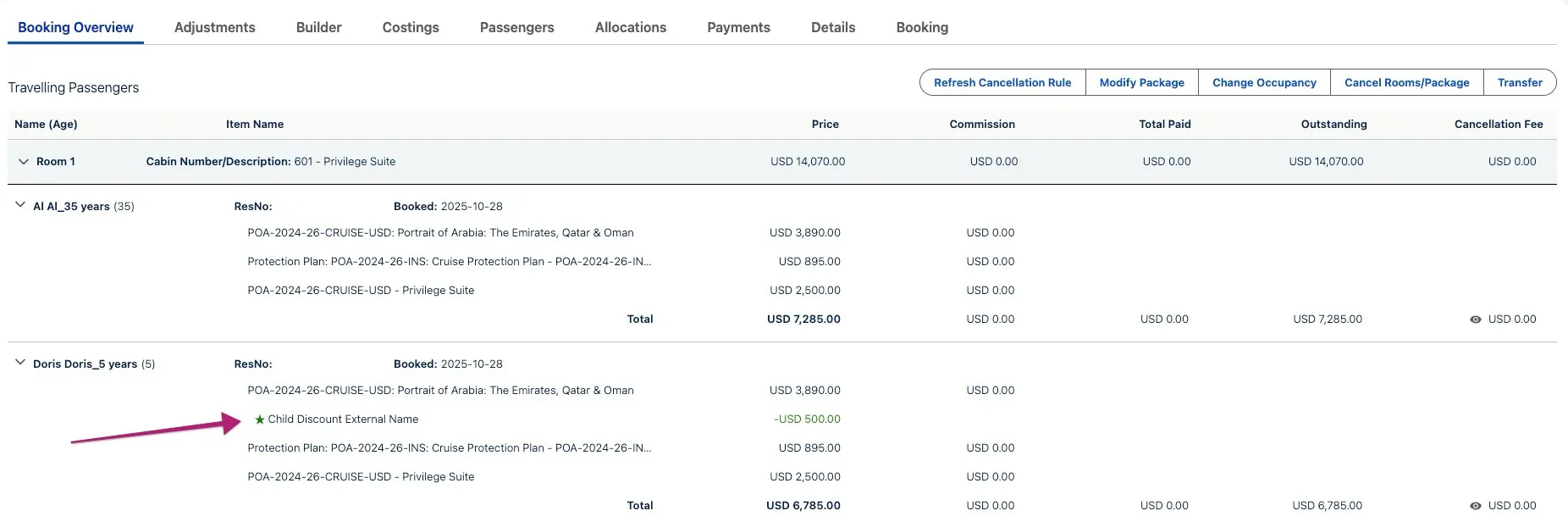
Viewing the Promotion on the Itinerary Builder and Costings tabs
The Child discount promotion discount is correctly reflected in the sell price of the Tour within the Itinerary Builder and Costings tab. For example, in the screenshots below, the package (Tour) price was 7,780 USD, with a discount of 500 USD, resulting in a total of 7,280 USD.
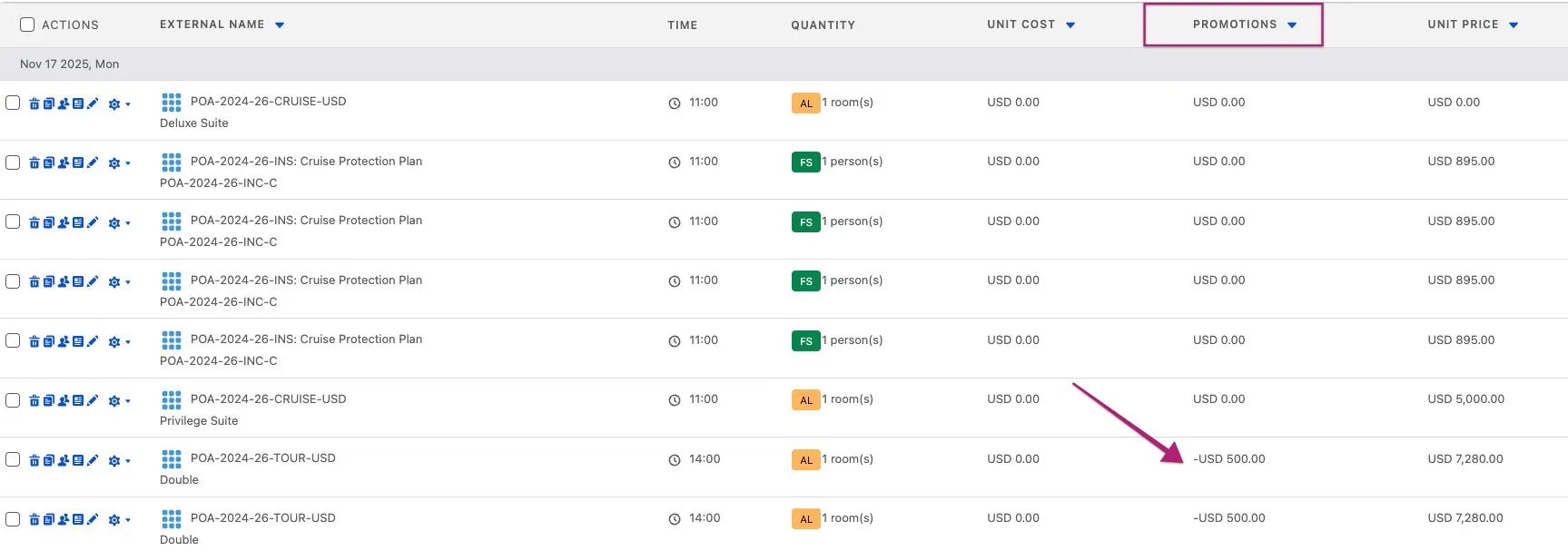
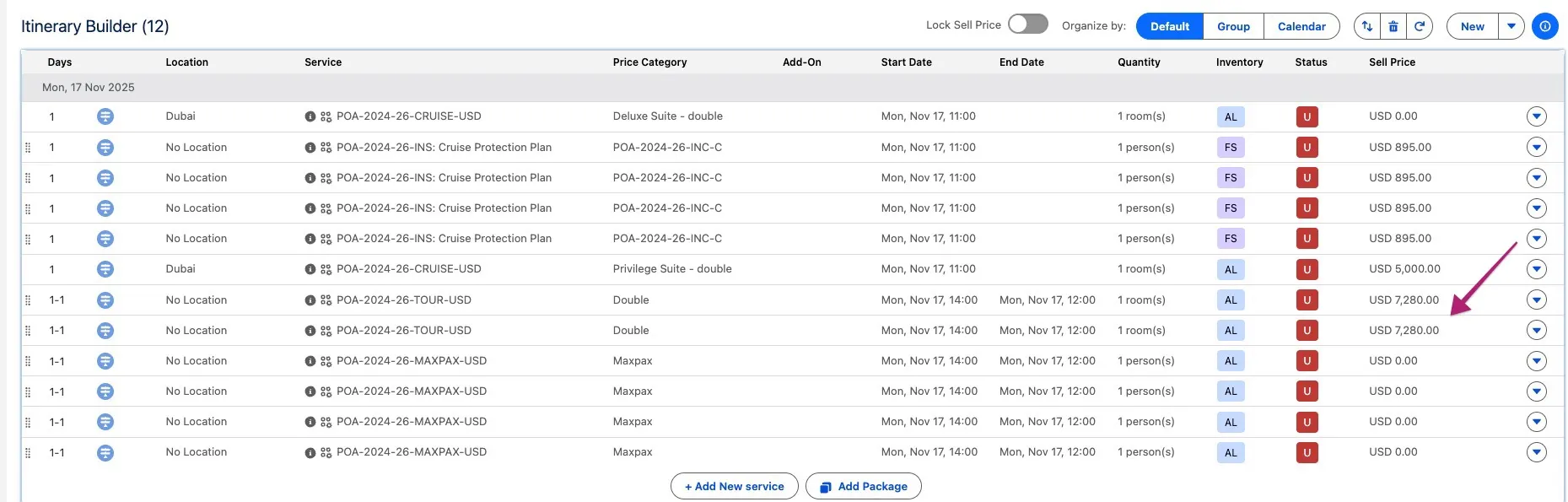
Minor Changes
Feature: Booking Wizard
ST-1998 Enable swapping in modify mode
The Booking Wizard JSON Configuration String now supports additional properties that allow overriding the default restriction on Passenger Swaps in Modify Mode.
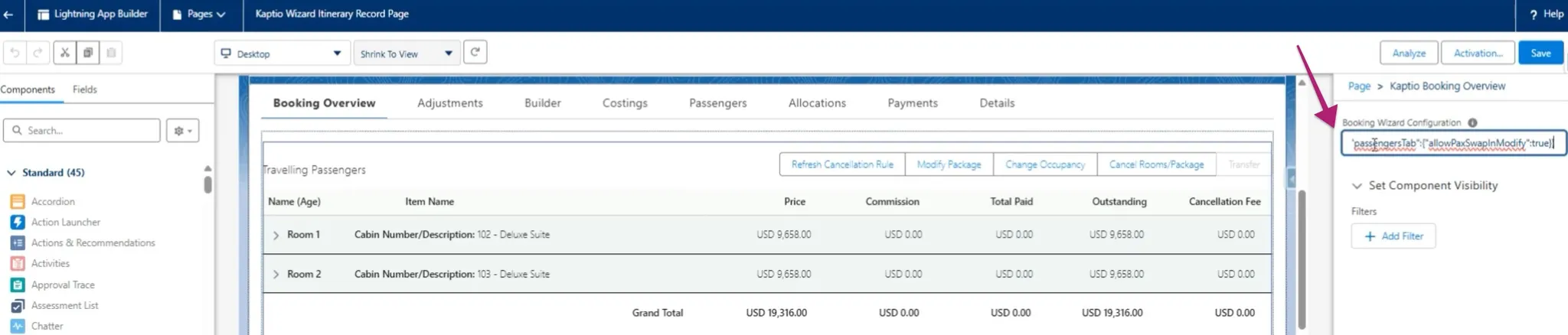
When the feature is disabled, the “swap” icon in Booking Wizard is disabled for all passengers in Modify mode.
If the setting "allowPaxSwapInModify" is enabled, passenger swaps will be enabled in Booking Wizard when Modifying.
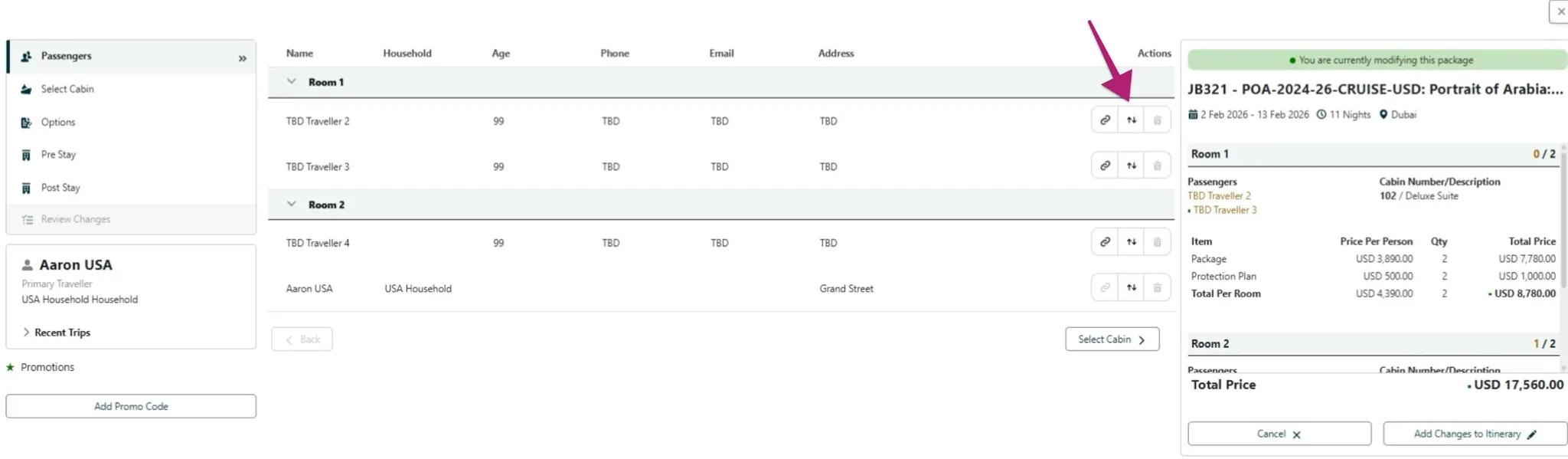
Swapping functionality in Modify Mode now works as expected i.e.:
-
When swapping between two rooms, new Reservation Numbers are assigned only to passengers in the rooms involved in the swap; all other passengers remain unchanged.
-
Payments made by swapped passengers are correctly transferred between rooms along with the respective passengers.
-
Transfer Mode continues to block swapping (linked passengers cannot be unlinked).
-
Swapping in Change Occupancy continues to function as expected.
-
If Adjustments are applied, they move between rooms with the corresponding passengers. NOTE: When a room involved in a swap has a promotion applied, the promotional effects (per person or per room) are expected to correctly apply to the swapped passengers. However, since promotions in Modify Mode are not yet fully implemented, this functionality will need to be tested in a future phase.
Feature: Promotions
ST-1212 Child discount - Populate fields on PIUA defined in datamodel changes and received from FE
Extended the booking system to fully support passenger-level promotion applications alongside existing room-level promotions
ST-2009 Show Passenger Level (Child discount) promo in Booking Overview
Enhanced Booking Overview to correctly display promotions applied at the Passenger Unit Assignment level, including their associated price line effects. Promotions such as Child Discount, when eligible and shown in the Booking Wizard price summary, now appear under the corresponding Tour row in Booking Overview with the expected indented ★ indicator and accurate discount values.
ST-2060 Occupancy handling in booking wizard requests
We now pass the actual room occupancy set in Booking Wizard rather than from Package Search
Bug Fixes
Feature: Booking Wizard
ST-924 Occupancy shown as Unknown on Allocations Tab
When creating an itinerary via Package Search using a household account, the occupancy and passenger assignment details for Protection Plan and Bedding components are not displayed as expected. On the Allocations tab, these components show the occupant type as "Unknown" instead of "Adult" or "Child". Additionally, on the Costings tab, clicking the occupancy icon next to these components fails to display the associated passenger name in the Passenger column. This issue affects clarity and traceability of optional component allocations.
ST-1307 KAPI-4069 When a package includes Room Up or hotel choices, the Modify Package flow displays the package price from different service level
Fixed an issue that when in Modify mode, the pricing summary shows the correct price that corresponds to the applicable service level (and price category).
ST-1472 Promotion tiles spill over Booking Wizard
Fixed a layout issue in Booking Wizard where multiple promotion tiles (auto-applied or manually entered promo codes) would overflow or spill outside the visible area in the Pre/Post Stay tab. The promotion section now dynamically adjusts to display multiple promotions correctly without layout distortion.
ST-1479 KAPI-4261 Modify package - Unable to remove pre and post if it is sold out
Fixed an issue in the Modify Package flow where users were unable to remove or adjust Pre- or Post-Stay services when those services were marked as Sold Out (SO). Previously, once a Pre or Post stay was sold out, the related options became disabled, preventing users from reducing the number of nights or removing the stay entirely during modification. With this fix, users can now correctly update or remove Pre/Post-Stay services in the Modify Package flow, even if the service is sold out, ensuring booking adjustments behave as expected.
ST-1731 (Temp Hold) cannot hold available cabins (not offered for selection in Booking Wizard)
Fixed issue where available cabin would not be returned when inventory is low.
ST-1807 Error on fast selecting/deselecting options in Pre/Post stay
Added spinner when users select or unselect Pre Stay or Post Stay options
ST-1976 When two concurrent sessions are opened the Booking Wizard is opened for both after message about not available inventory is visible
Fixed an issue in Booking Wizard where, in concurrent sessions, the wizard would still load after an availability conflict occurred. When two users (or tabs) attempted to book the same cabin simultaneously, the system correctly displayed an error message but proceeded to load the Booking Wizard anyway. The flow has been updated so that the Booking Wizard no longer loads when the selected cabin is already taken, preventing unnecessary errors and maintaining correct booking behaviour.
ST-1943 Multiple errors related to inventory after an expected error in CO/Modify
Fixed an issue in CO/Modify mode where once a handled error was triggered during Pre/Post Stay selection (e.g., choosing an invalid room configuration), the error state could not be cleared and subsequent valid selections continued to display multiple or inconsistent errors. The logic has been updated so that after an error is cleared, users can now correctly select a valid Pre/Post Stay option without further issues.
Feature: Package Search
ST-1267 KAPI-4011 Activity Level is not displayed in package search expanded result
Resolved an issue in Package Search where the Activity Level field was not displayed in the expanded search results for packages (e.g., MO, ITS, RYX). The field now correctly appears when viewing detailed search results, ensuring users can see the activity level information as expected.
ST-2146 Multiple this.refs errors in console loading Package Search Availability.
Added microtask to render this.buildProperites ONLY once the DOM has successfully loaded. This prevents multiple errors showing in the developer console when in Package Search > Availabilities.
Feature: Booking Overview
ST-1856 KAPI-4515 When a package includes RoomUp, the RoomUp service level line item doesn’t appear in both Booking overview and Builder tab
Resolved an issue where creating a booking for MI 2025 – Grad Hotel Lake View (or similar itineraries) failed to generate the expected Room Up Service line item in the Builder tab. Previously, when users selected a Lake View service level, added mandatory components, and proceeded through the booking flow, the itinerary was created without the associated service-level line item. The logic has been updated to ensure that the Room Up Service line item is consistently created as expected for all applicable service levels during booking creation.
Feature: Promotions
ST-1980 GoT Auto-Apply Promotion remains applied after un-assigning all passengers in Booking Wizard
Resolved an issue in Booking Wizard where the GoT Auto-Apply promotion remained attached to a room even after all passengers were removed. Previously, once the promotion was automatically applied upon entry from a qualifying contact, it could not be cleared unless the promotion was re-triggered elsewhere. The system now correctly removes the promotion when no eligible passengers are assigned, ensuring passenger-based promotions behave as expected.
ST-2034 Promotion description is not visible in the Package Search
The promotion popup is now visible in the Package Search.
ST-2045 Promotion Name visible in the Booking Overview instead of the External Name
Fixed an issue in Booking Overview where the Promotion Name was displayed instead of the External Name for applied promotions. The interface now correctly shows the External Name, ensuring consistency with the promotion details visible to users and external systems.
Feature: Inventory
ST-2004 KAPI-4964 After the transfer departure the inventory remains in the reserved count even though the new itinerary is created with active booking status
Fixed an issue in the Itinerary Transfer process where, after transferring an active booking to a new departure date, the associated inventory units were incorrectly left in a Reserved state instead of being moved to Booked. With this fix, when an itinerary is successfully transferred, the inventory for the new departure is now properly deducted from Available units and reflected as Booked units, ensuring accurate inventory tracking across transfers.